


Showing posts with label Softwares. Show all posts
Showing posts with label Softwares. Show all posts
Monday, February 11, 2013
Root Xperia Tipo safely-easily
 2:13 PM
 Admin
Admin

Rooting Xperia Tipo
Yep, Guys Now Tipo also get a way to root
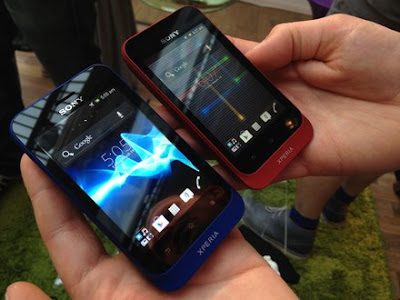
Requirement to Root-> Tipo Rooter
------> Download now !
2. extract it in a safe place
3. You Will get 3 files
4. Now open setting->application->development>tick the usb debugging.
5. Now, connect your Xperia TIPO device to the computer
With the help of original USB cable.
6. Open the “RunMe.bat” executable file
which you can get from the extracted files.
7. You Will get something like this below pic.
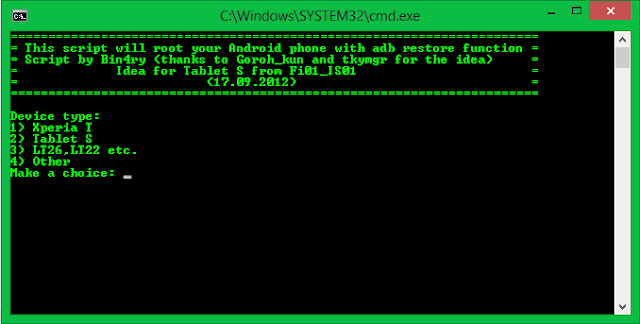
8. Once it’s opened, enter the number “4″ and press Enter
to follow the on screen instructions.
9. Once the device is rooted successfully,
you will get the prompt in your SONY Tipo.
10. You can check on whether your phone got rooted or not
from the “Root Checker” app which can
be downloaded from the Google PLAY STORE.
Monday, February 4, 2013
Bitdefender internet security 2013 1 pc 1 year $0.13 (Rs. 7)

Bitdefender internet security 2013 1 pc 1 year of Rs. 554 just for Rs. 7
• Superior antivirus and antispyware • Facebook and Twitter privacy guardian • ID Theft Protector • Risky websites detector • Watches over your kids online • Protects Internet connection (Firewall) • Windows 8 Certified.
Discount Coupon: 2013-NYS
Tuesday, January 22, 2013
Recover files from formatted hard drives from EaseUS Data Recovery

Symptoms
Where previously the computer would boot and be usable, systems that have been Formatted often report the following errors: (these errors are frequently displayed on a black screen with white text.)
- Operating System not found
- Invalid or corrupt FAT
- Cannot find file or program
- Invalid command.com
- Primary/Secondary Hard disk failure
- Non system disk
- Disk error
Or when a partition has been formatted, the all data would disappear.
To unformat files from formatted drives, please follow this procedure:
1. Download EaseUS Data Recovery Wizard, install it and launch it. Click the "Complete Recovery" button on the main window of Data Recovery Wizard. (If you cannot boot the computer, please use data recovery bootable disk or connect the hard drive to another computer as slave to recover lost data.)
Note: If the hard disk has mistakenly deleted volumes, hidden volumes, drives with failed operation/file system, you should use "Partition Recovery".

2. Select the file types you want to recover. Tick 'Search all lost files automatically' to find all lost file types. Tick 'Ignore bad sectors' to skip bad sectors when scanning.

3. The second screen on the "Complete Recovery" tool will display a list of volumes found on the drives found in your system. If the volume does not have a drive letter, then the volume will be listed at the hindmost and the drive letter will be instead by "*".
4. You should choose the volume that was formatted and click "NEXT" to start searching on this volume.

5. The Intelligent Searching module will scan on the selected volume, collect and analyze every byte on the volume, then show you a list of volumes which are possible on it.


6. After this scanning is finished, Data Recovery Wizard will permit you choosing 4 volumes at best to recover the data. And then, press "NEXT" button. The Data Recovery Wizard will launch the "Building directory" procedure to searching the files. You will see file/folder tree very soon.

7. Select the file or directory that you want to recover and press the "Next" button.

8. Select a directory and press the "NEXT" button to save the data.
Caution: Saving file(s) to the partition or drive where you are recovering data, for it may result in overwriting data and permanent data loss!
Monday, January 21, 2013
Run Chrome OS on Any Windows PC using 4GB USB Stick
Google Chrome OS comes bundled with Chromebooks and Chromebox. Either you will have to purchase these devices from nearest retailers or you may run Linux Distributions of the Chrome OS on any other device including your existing Windows PC or Mac. Linux Distributions of Chrome OS are based on the original Google Chrome OS with limited compatibility. There is an open source installation available on Chromium project site (Google Chrome OS is a modified version of Chromium OS) to install Google Chrome OS on non-chromebook devices but it involves few tech savvy steps. Don’t worry, if you want to try the Chrome OS ( Always a new computer ) without much effort, checkout a simple way to run Chrome OS on non-chromebook devices (like Windows notebooks, netbooks, laptop, desktop etc.) by just booting the device using 4GB+ USB pen drive.

Follow the steps below to get Chrome OS running in less than 5 minutes.
- Download either of these two Linux Distribution of Chrome OS – VanillaOr Lime (size of any of these files ~250MB)
- Vanilla is the basic version of linux distribution whereas Lime is having better support for different hardware devices like Ethernet and sound drivers
- Unzip the downloaded file, you can see a IMG file of size ~1.91GB in the unzipped folder
- Download the binary copy of Windows Image Writer and Double-Click on the EXE file from the downloaded folder
- Locate the IMG file in this application and also select the USB drive where you want to write this IMG file. Don’t forget to format the USB stick before writing the image file. The minimum recommended size for USB drive is 4GB.
- Click on ‘Write’ button to start writing the image file to the USB drive or stick
- Boot your netbook, laptop or desktop using that USB drive. You will see Chromium OS booting and asking for the details like Keyboard, Language and Available Network. Provide these details. You will be ready to enter Google credentials and login to the Chrome OS.
Chrome OS will welcome you with Google Chrome help document. You can navigate to the different options like settings, web store etc.
The desktop of Chrome OS is having only one option i.e. ‘Change the Wallpaper’. Here is how the desktop of Chrome OS looks with a pre-installed wallpaper.

Cloud Print
Chrome OS is all about cloud computing as you store most of your data on cloud and access that from there only. If you want to print a document, you can use Google Cloud Print application which is available on Chrome browser settings panel. You just need to locate the printing devices (Cloud Print ready Printers or normal old printers).

Always a New Computer
Google and Samsung promote the Chromebook or Chromebox as “Always a new computer” because everything is on cloud and the OS, browser etc. gets auto-update without any charges. You are not storing anything on local device and whenever you change your Chromebook or login to your friend’s Chromebook with your Google Credentials, you will see all your apps and bookmarks there as well (just like your own Chromebook).
This is true with this Linux distribution as well. As you are using Google Credentials in this Chrome OS to login, your data will be synchronized with your Google Account. Whenever you login to a Chrombook or Chrome OS Linux Distribution, you will be able to see all your apps and bookmarks everywhere.

Sync all your data like bookmarks, settings, apps, extensions, passwords, autofill, themes etc. in Chrome OS
How much do you save by NOT purchasing a Chrombook or Chrombox?

I am not saying that with this Linux distribution you are having the same device and OS as Chromebook but it is really really close. Google Chrome OS is also based on Ubuntu and Chromium OS which are open source but Google is shipping Chrome OS with Chromebooks only. This Linux distribution is having all the capabilities of Chrome OS (with some bugs and fixes) and it runs as smooth as any other operating system.
Friday, December 28, 2012
Use 750,000 Mobile Apps on Windows or Mac
Introducing Blue stacks which is a freeware .With the help of this software its easy to run mobile apps on windows or mac ..

Checkout
Official website :http://bluestacks.com/
Checkout
Official website :http://bluestacks.com/


